
My Media for Alexa Multiroom Audio Support
Amazon does not natively support multiroom for third party skills such as My Media for Alexa (or any others). This means using the normal commands to initiate multi-room (eg "Alexa, play x on my downstairs group") unfortunately does not work.
However, the great news is we have found a way of enabling Alexa multiroom with My Media for Alexa despite this limitation. Just follow these instructions!
Preparations
Before you enable Multiroom for My Media, you need to have assigned your Alexa devices to rooms within the Alexa app by following these instructions. They only need to be once done to prepare your setup. If you've already done this then skip to the instructions for enabling multiroom.
-
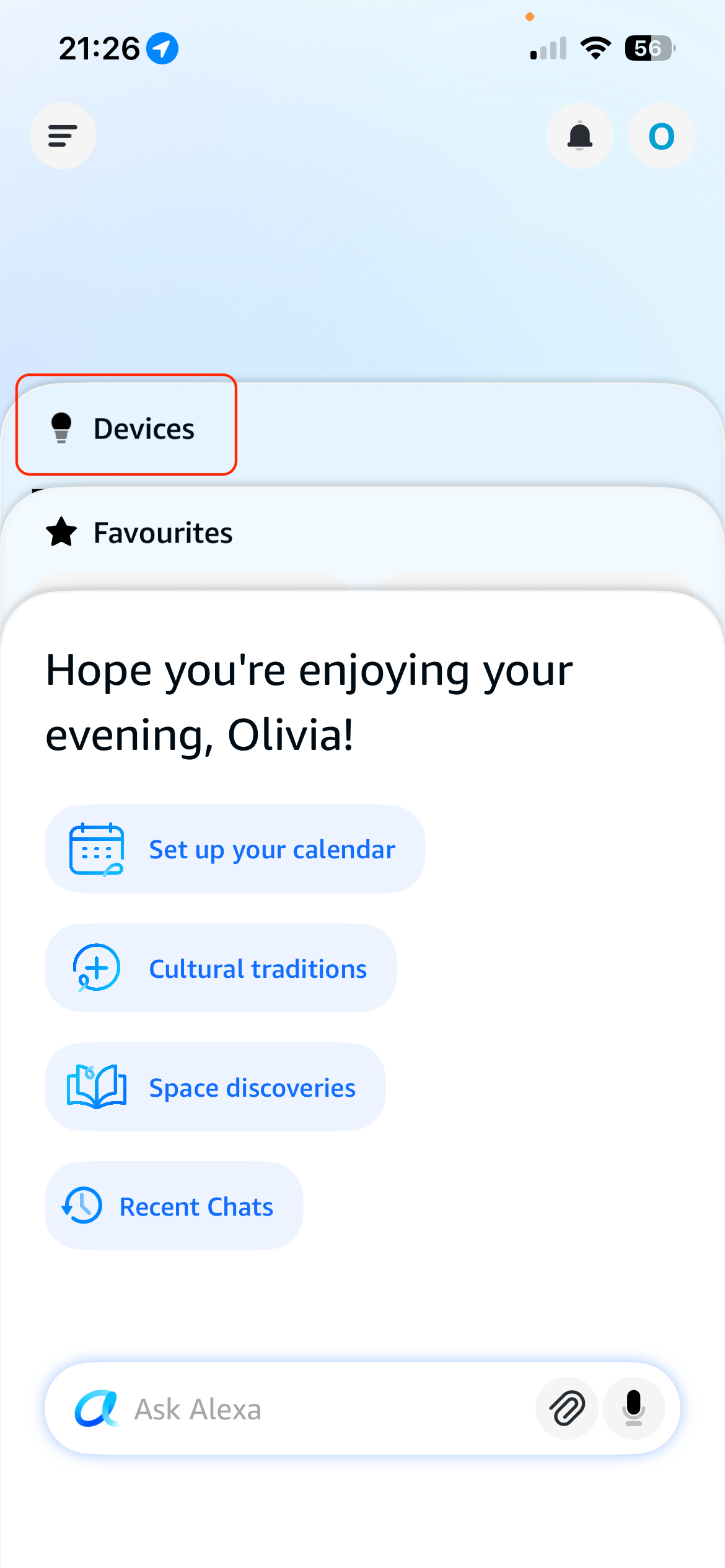
Open the Alexa app on your smartphone and click the 'Devices' page
-
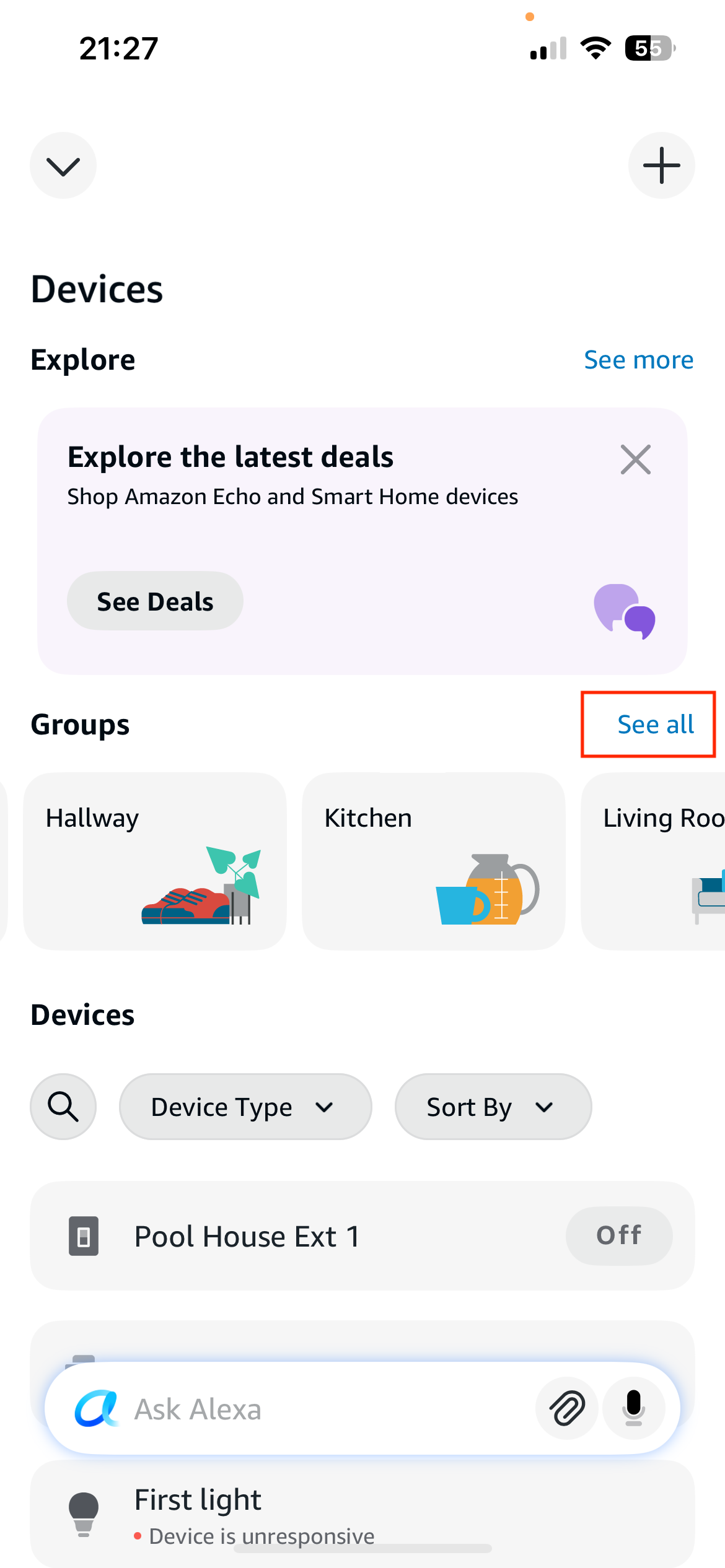
Click 'See All' next to the Groups heading:
-
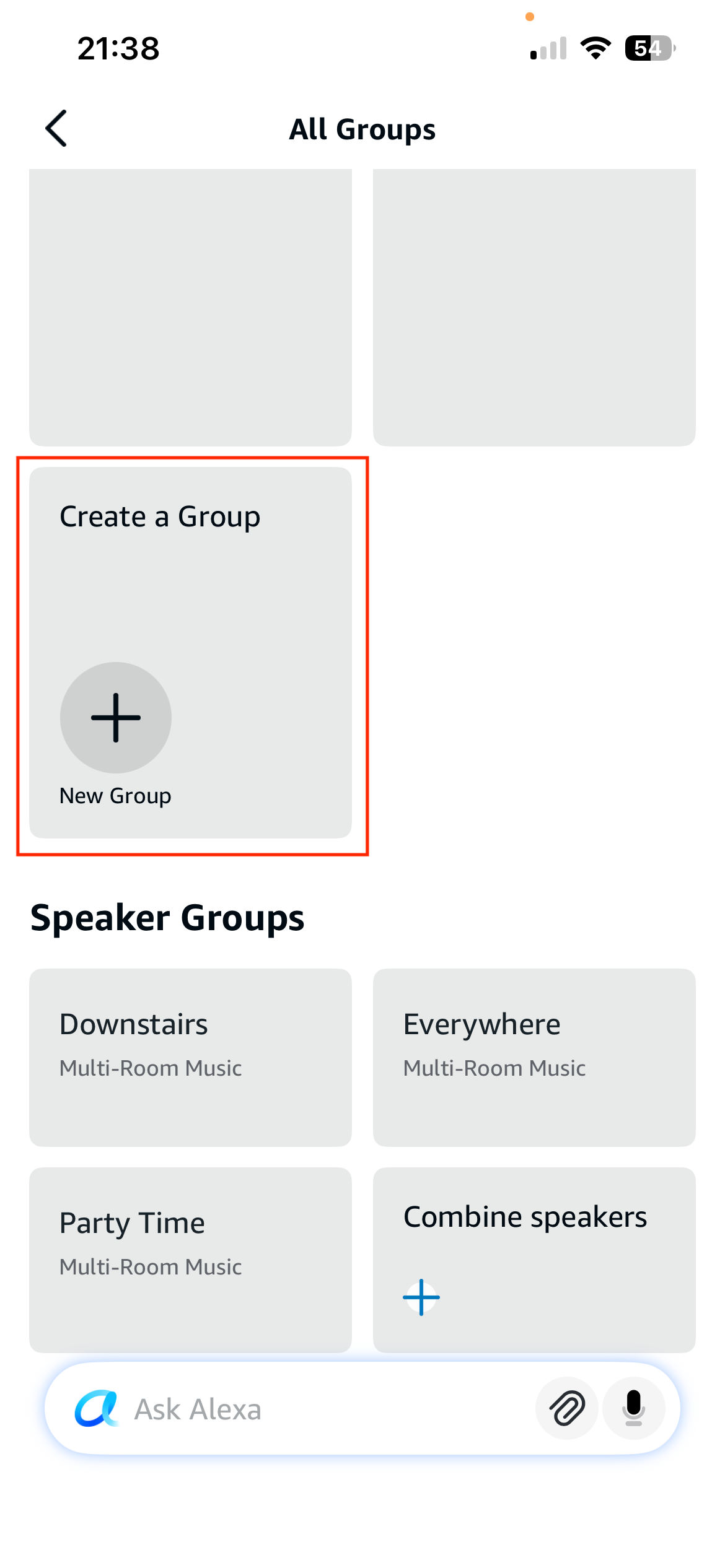
You now need to associate your Alexa devices with the room they are located in, eg the Living Room. See if the room your device is in already exists, and if not, create a new one by clicking the "Create a Group" option at the bottom of the page.
-
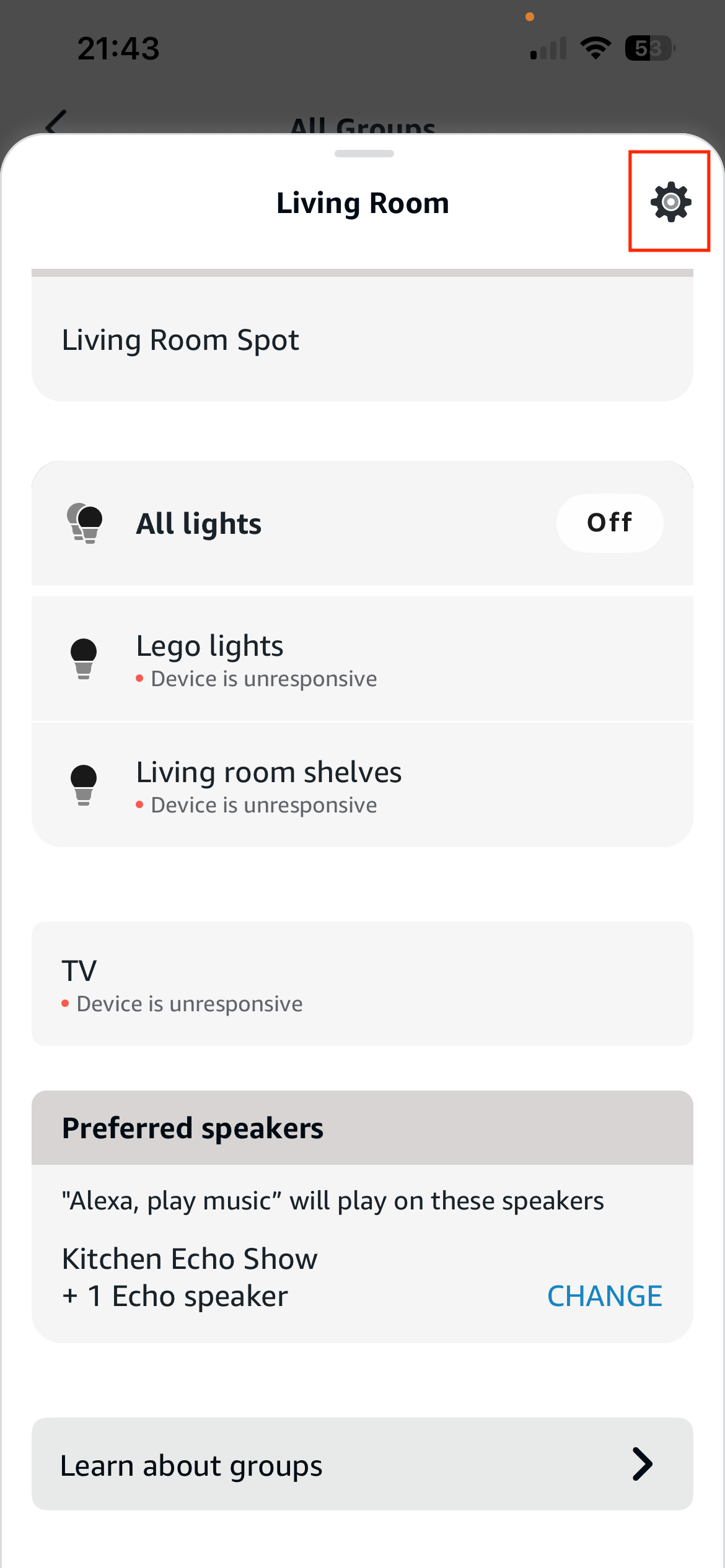
Tap the room that contains your Alexa device and then click the cog in the top right hand corner:
-
Tap the Alexa devices in this room so they get a tick, then click 'Save':
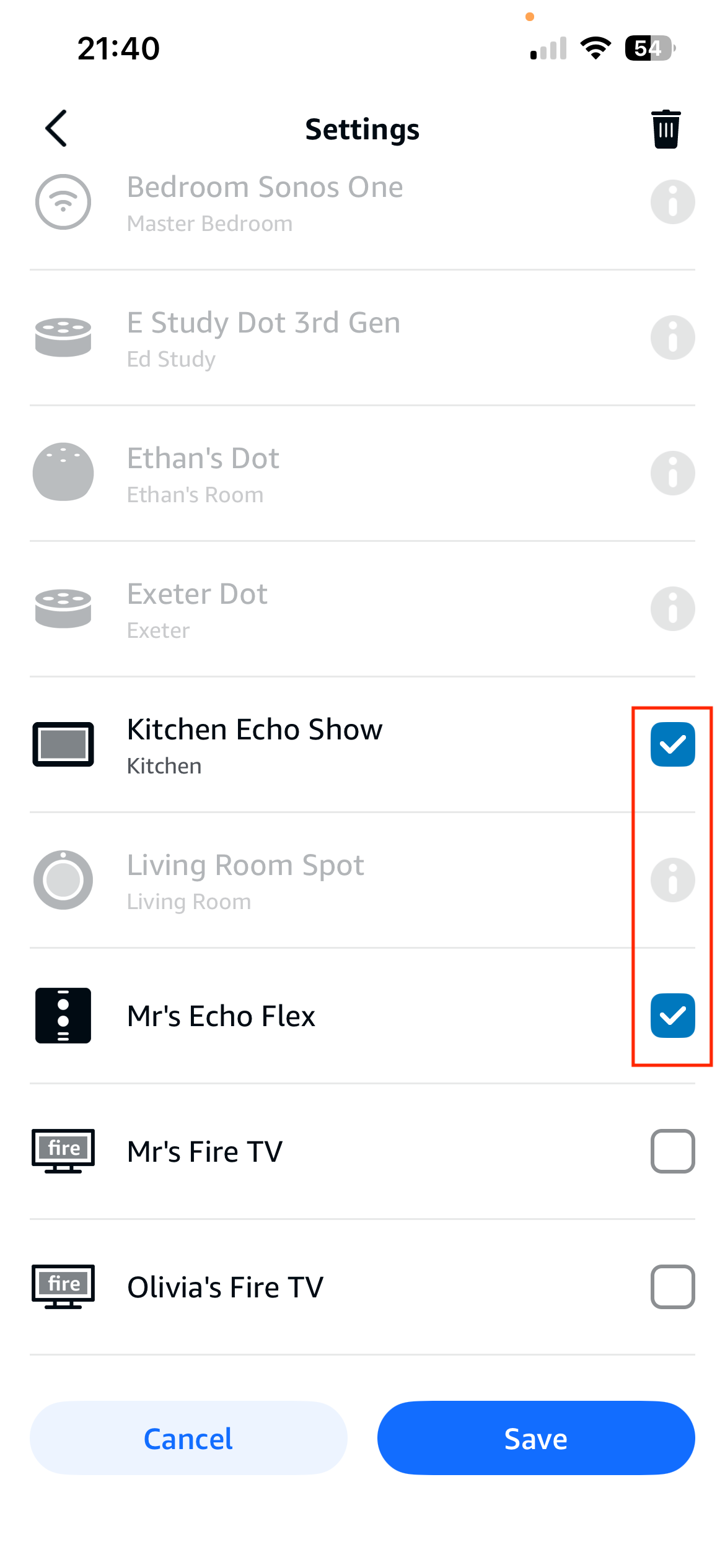
- Repeat these last steps to assign all your devices to their correct rooms.
Enable Multiroom Support for My Media for Alexa
Now enable Multiroom when you want to play a playlist or track on multiple speakers. Follow these instructions when you want to enable it.
-
Tap "See all" next to the Groups heading:
-
Tap the room in which the Alexa you will instruct resides, eg Living Room
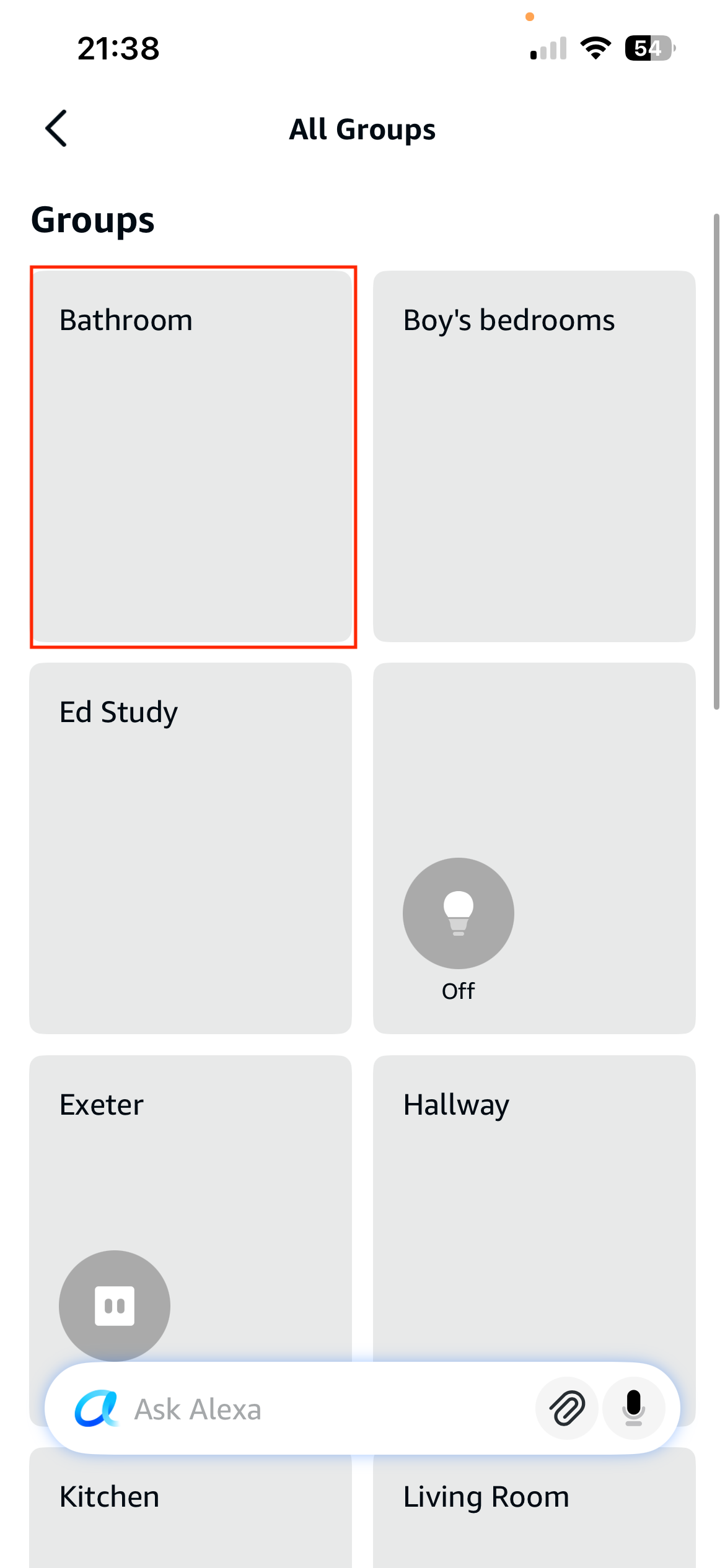
-
Scroll down to find 'Preferred Speakers' and tap 'Change':
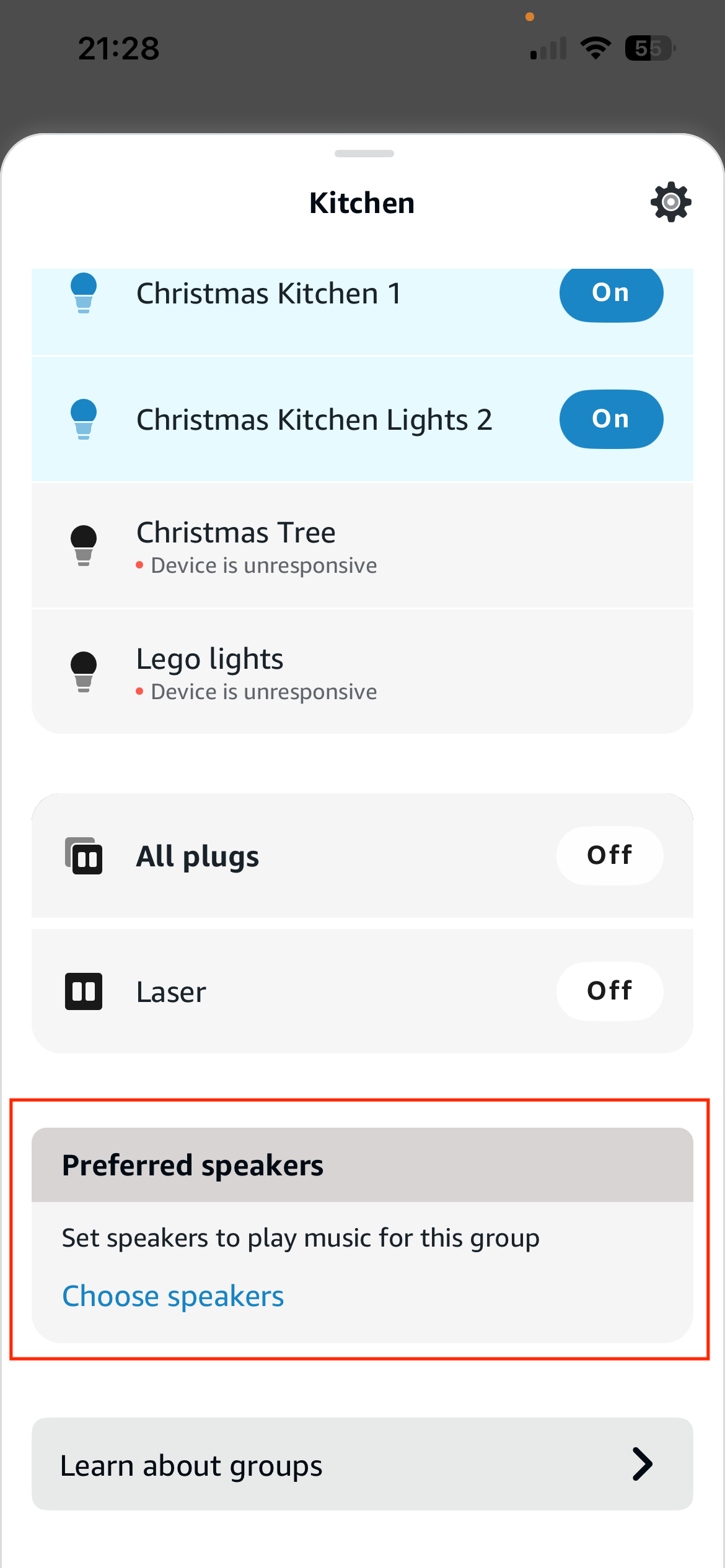
-
Tap 'Change' again
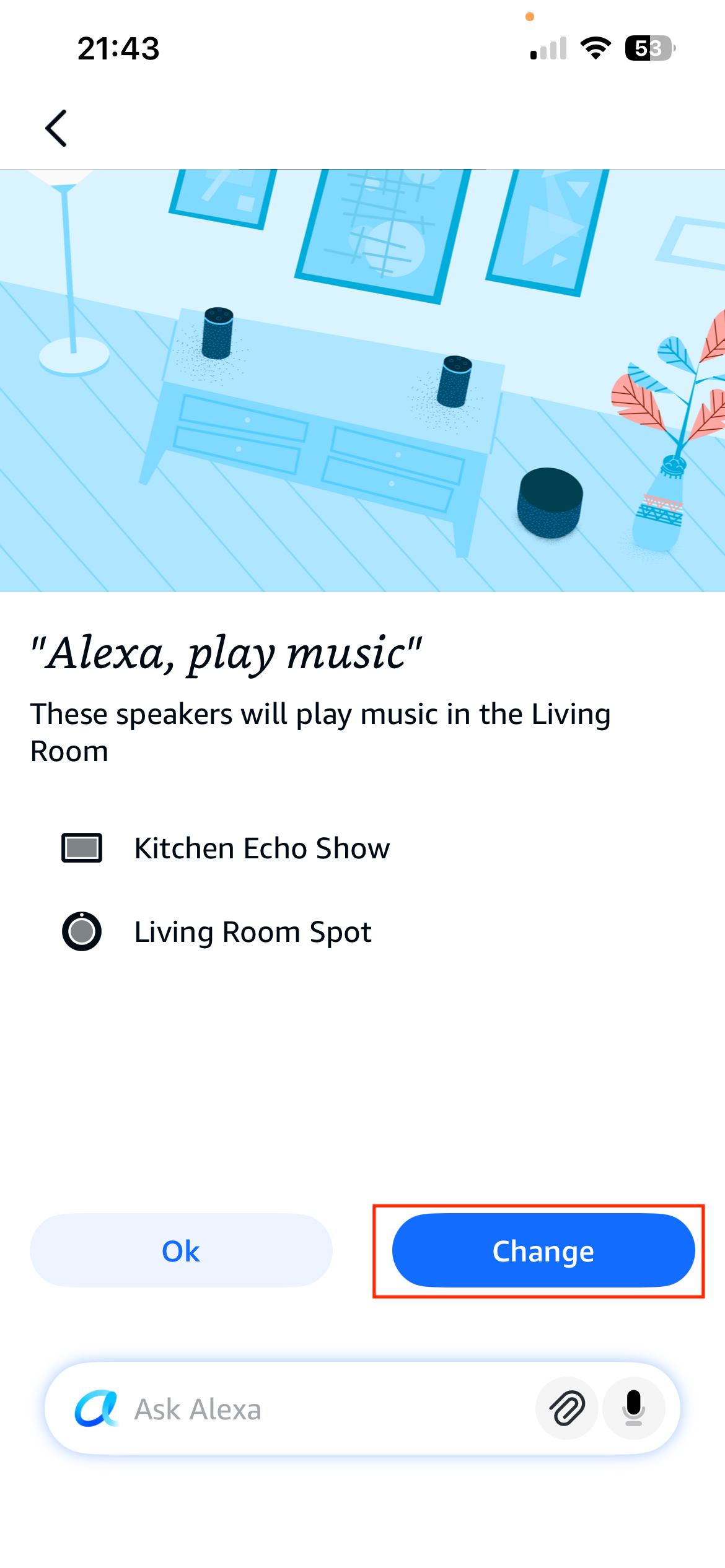
-
Select multiple Speakers you want to play to, eg 'Kitchen Show' and 'Dining Room Show' then tap 'Next':
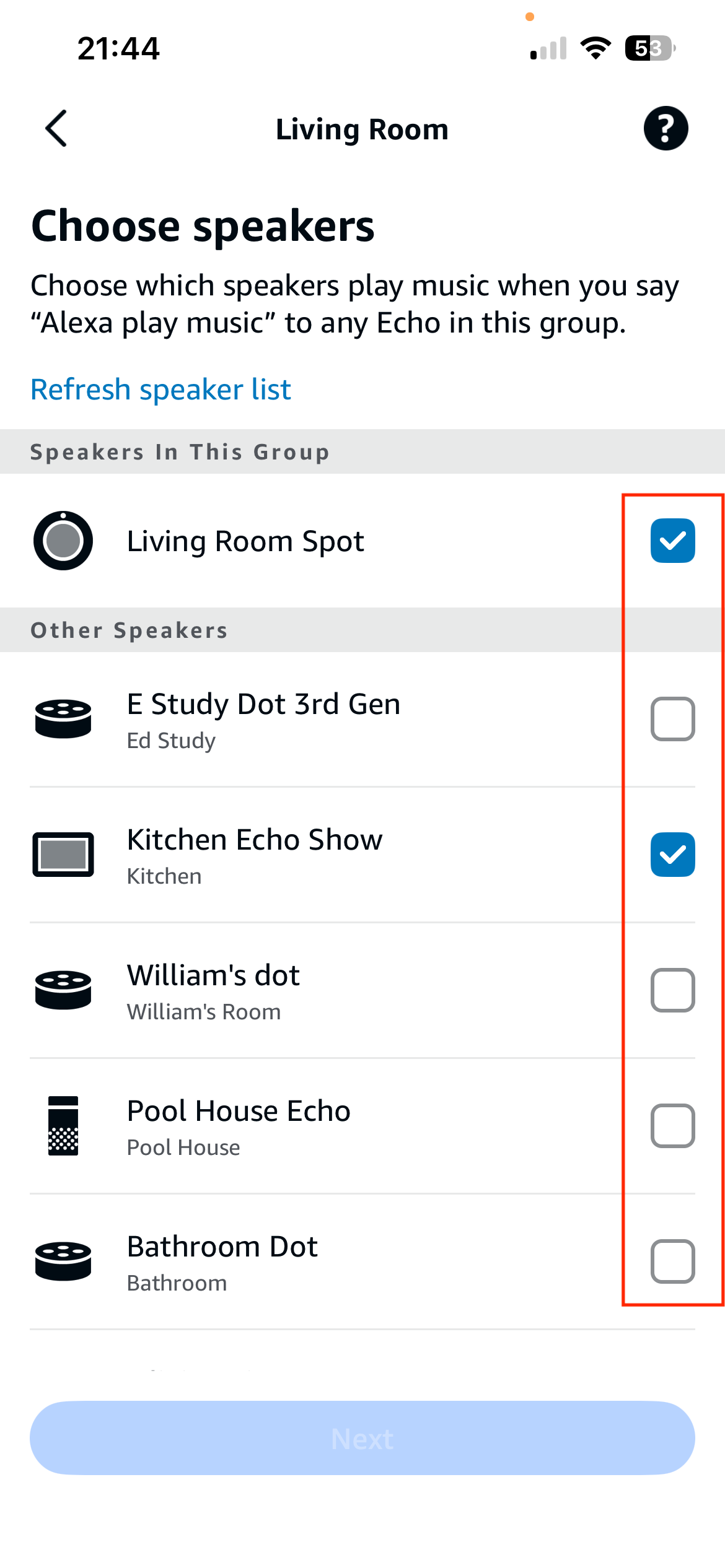
-
Scroll to the bottom and find "Playback Options" / "Play music on selected speakers". Click 'Change':
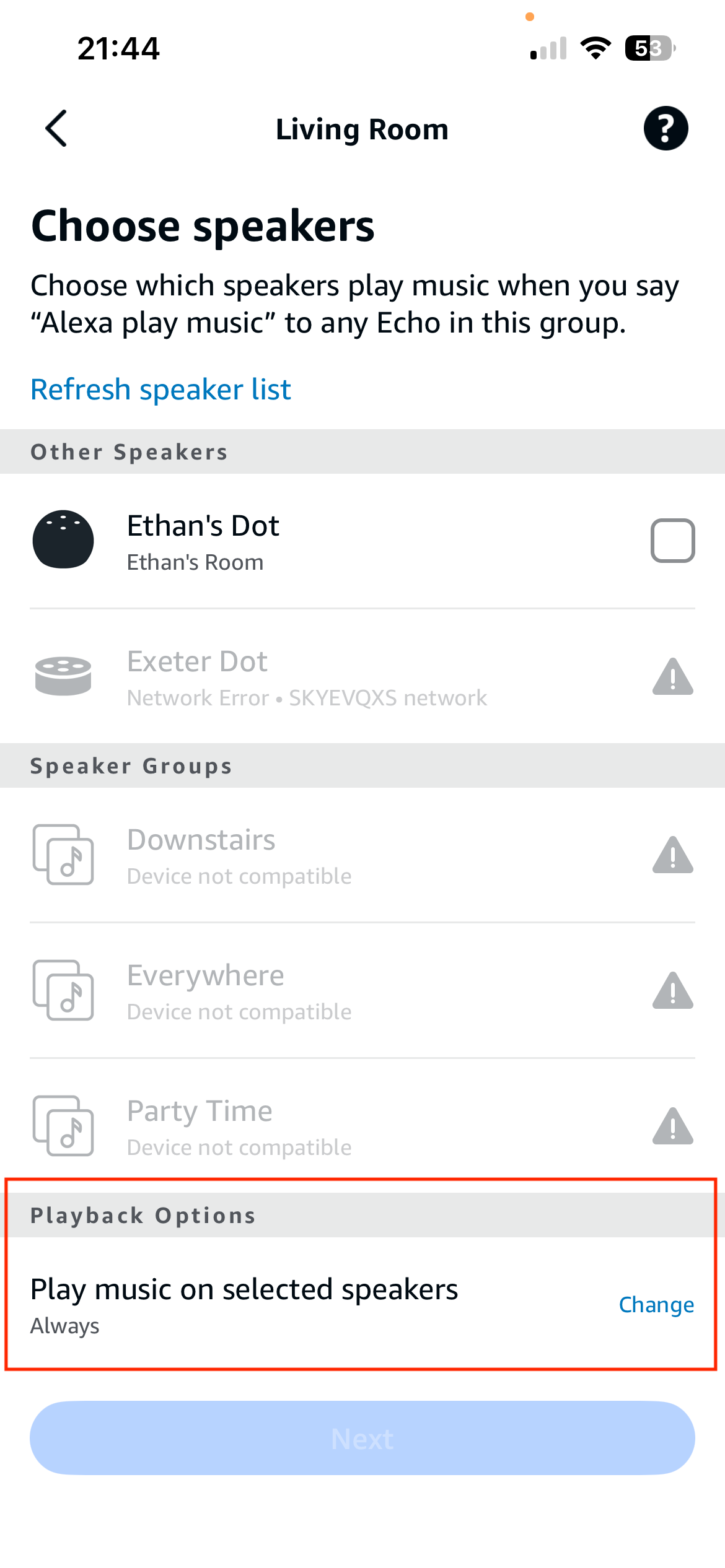
-
Click 'Always' to indicate music should always play from these speaker
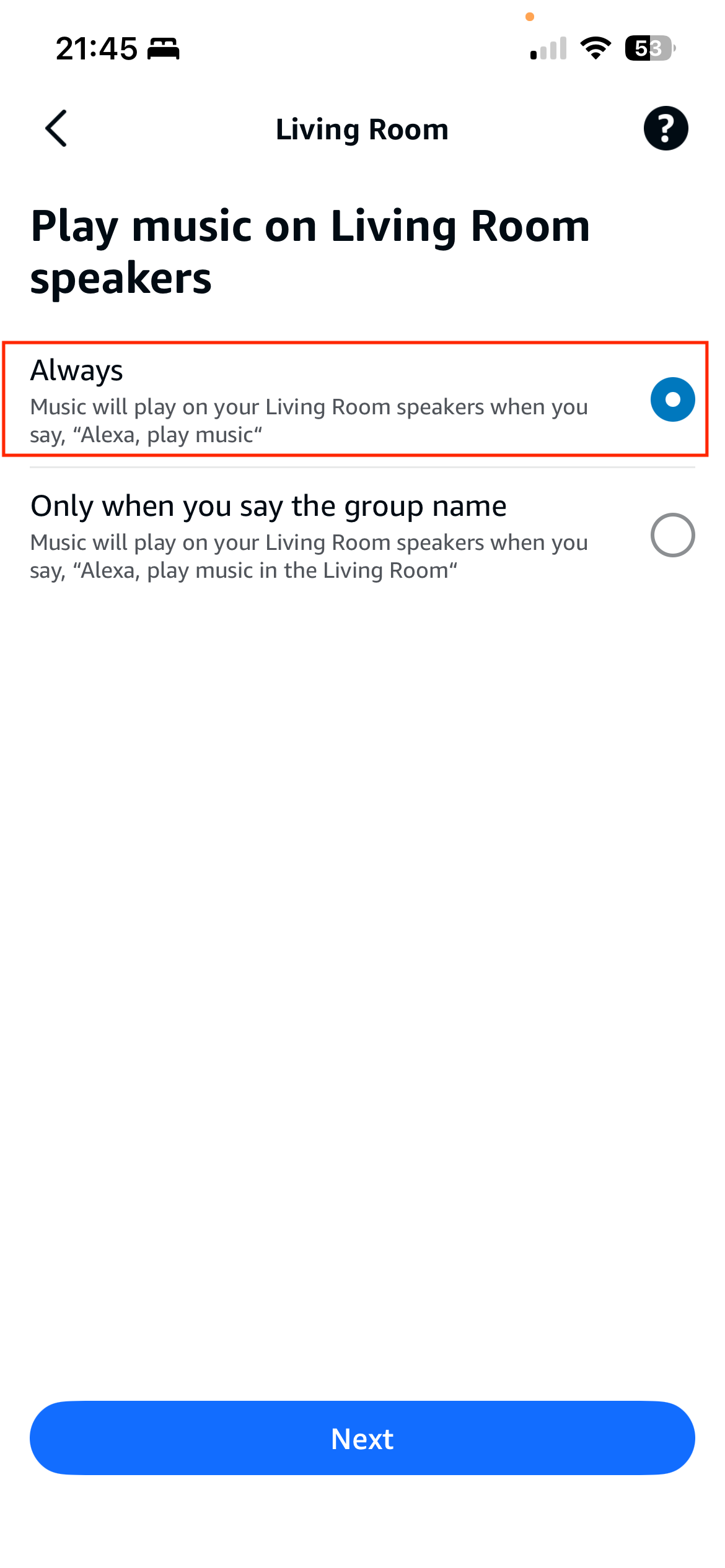
-
Tap 'Next'; Alexa will show the preferred speaker now set to your choice:

Playing your Music with My Media for Alexa
You can now use My Media for Alexa as normal, eg "Alexa, ask My Media to play music by Ed Sheeran". Do not specify the speaker group in your phrase as this will not work.
Disabling Multiroom for My Media for Alexa
When you have finished using Multiroom, you can disable by repeating the steps above but removing the additional speakers in the third step.
Ongoing Work
We are aware this is not a perfect user experience by far - we believe you should be able to request the speaker group to play your media when you instruct My Media instead of setting the preferred speaker group as above. However, Amazon does not currently allow this functionality within their API. If you want to support our cause please upvote and leave a comment on our feature request to Amazon here.